

The period filter is a filter used to set the data range displayed on the report.
You can specify the reference range from [Selected Period] at the top left of the report screen.
Click the arrow icon on the right side of the period filter to display a calendar as shown in the image above.
Select the data range to be displayed in the report.
(Example) If you want to refer to the period from March 1 to April 20
① Click March 1 on the calendar
② Scroll the calendar and click April 20
③ Click [Apply] at the bottom right of the filter
Additionally, you can also select the default conditions from the selection period box at the top of the filter.

4-4-5 Calendar: Weekly Filter:
When viewing data for each season from June to August, September to November, December to February, and March to May, it becomes easier to filter by week.
4-4-5 Calendar: Monthly Filter:
When viewing data for each season from June to August, September to November, December to February, and March to May, it becomes easier to filter by month.
Previous Period: You can select the previous week (matching days of the week) of the selected period.
(Example) If the selected period is from July 1, 2020 to July 9, 2020
June 17, 2020 - June 25, 2020
Same period last year: You can select the same dates from the previous year for the selected period.
(Example) If the selected period is specified as July 1, 2020 - July 9, 2020
You can set the comparison period as July 1, 2019 - July 9, 2019.
Same day of the week last year: You can select the same day of the week from the previous year for the selected period.
(Example) If the selected period is specified as July 1, 2020 - July 9, 2020
You can set the comparison period as July 3, 2019 - July 11, 2019.
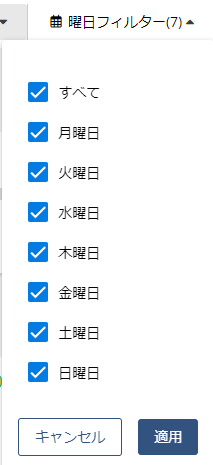
This is used when analyzing trends for specific days of the week or excluding holidays from the comparison period.
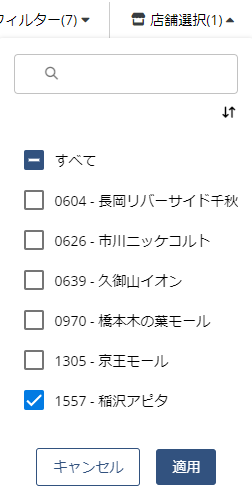
It is possible to analyze data for specific stores or all designated stores collectively.
You can search for store names from the search box.
You can sort store numbers in ascending or descending order using the ↓↑ button.
By dividing stores into regions, AM/SV in charge, or custom groups, you can increase the efficiency of analysis and comparison.
Region selection: You can select from three areas: [East Japan], [Central Japan], and [West Japan].
Area selection: You can select up to nine areas such as [Kanto] and [Hokkaido].
AM selection: You can display the stores in charge of each area manager you select.
Common group selection: You can display the specified groups such as the registered store formats and specific enhancement stores.
[Flow Classic] Common Group Settings
A guide to adding, editing, and deleting common groups or Area Manager groups, and adding stores to them.
If you have any questions or feedback, please contact support at [email protected].
