
The operating hours on specific days may change due to maintenance or events (holidays, sales promotions, unexpected closures, etc.).
To ensure consistency in data comparison, it has become possible to modify operating hours for specific periods.
Click [Settings] in the menu bar → [Store] → [Edit] for the store you want to modify.
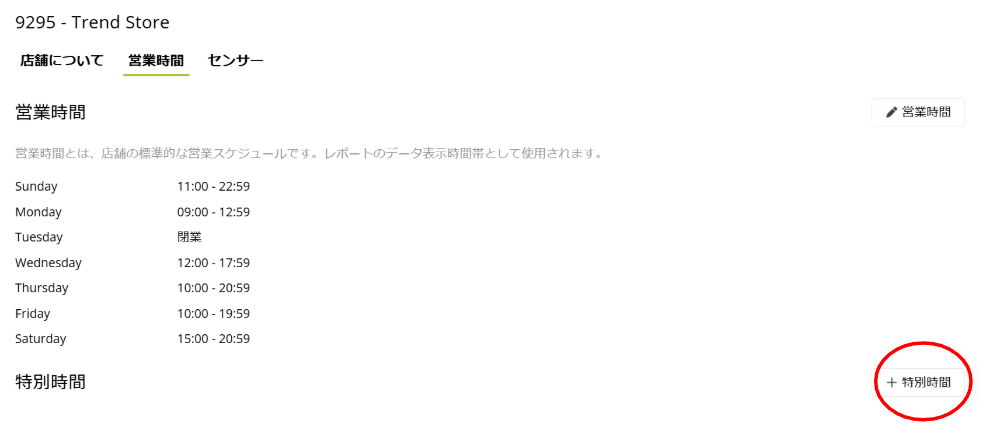
Click [Special Hours] at the bottom of the [Operating Hours] tab.
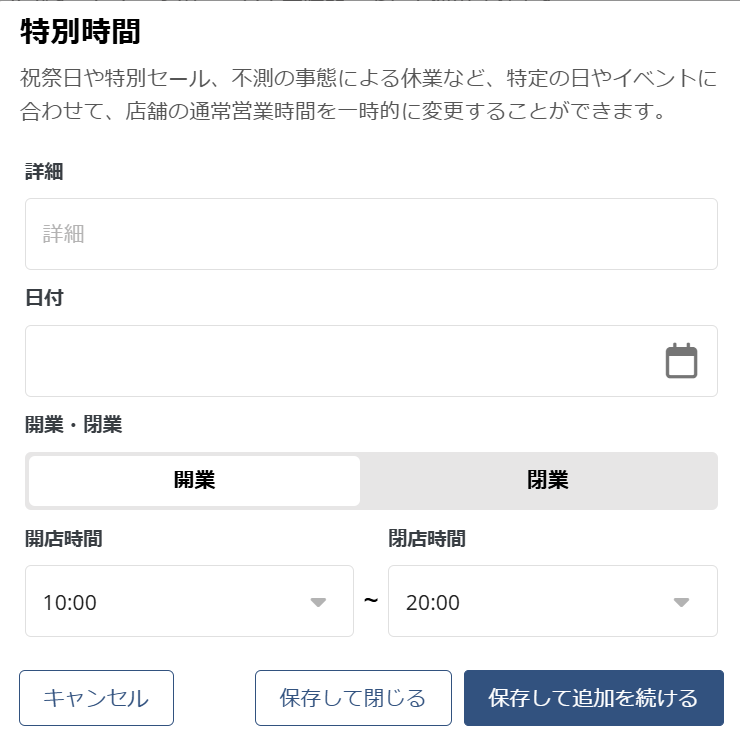
Details: Enter the details of the operating hours change for the specified date.
Date: Select the target date.
Opening/Closing: Choose whether it is opening or closing.
Opening time / Closing time
Enter the operating hours.
※ For the closing time, select one hour before the closing time.
For example, if the store opens at 10:00 and closes at 20:00

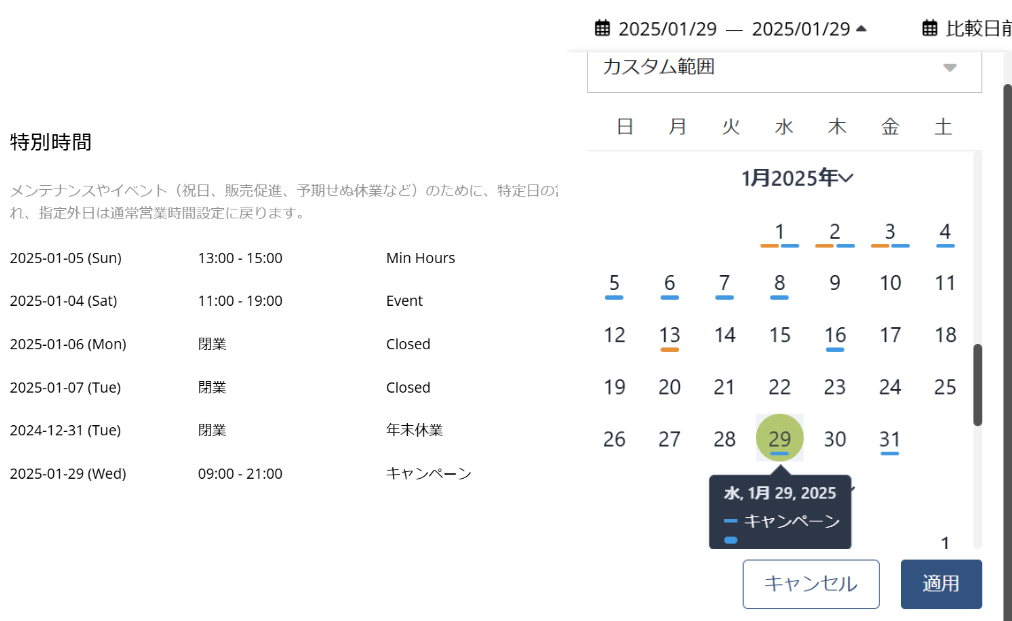
Detailed information is displayed at the bottom of the settings screen and on the calendar. Only the content of the store selected through the filter will be displayed.
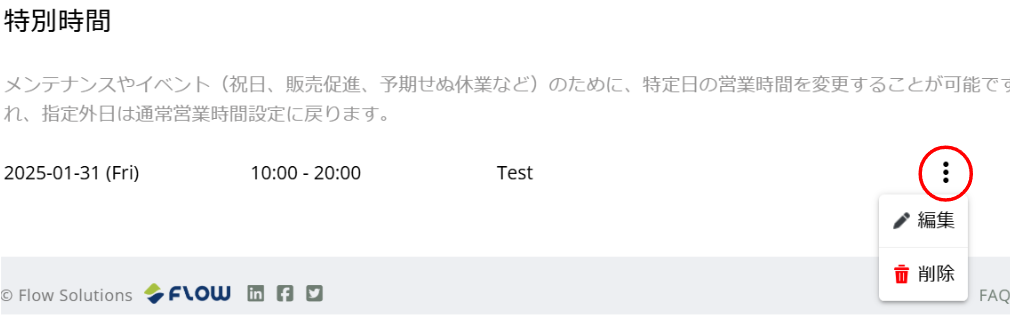
As shown above, you can click on the mark enclosed in the red circle to edit or delete the settings.
After deletion, the settings will return to the default business hours.
If you want to set this for multiple stores or dates, please refer to the following.
[Flow Classic] About Importing
We will explain how to import various data and settings.
If you have any questions or feedback, please contact support at [email protected].
